

















Lock Down Your Accounts: Password Managers and Two-Step Login Made Easy
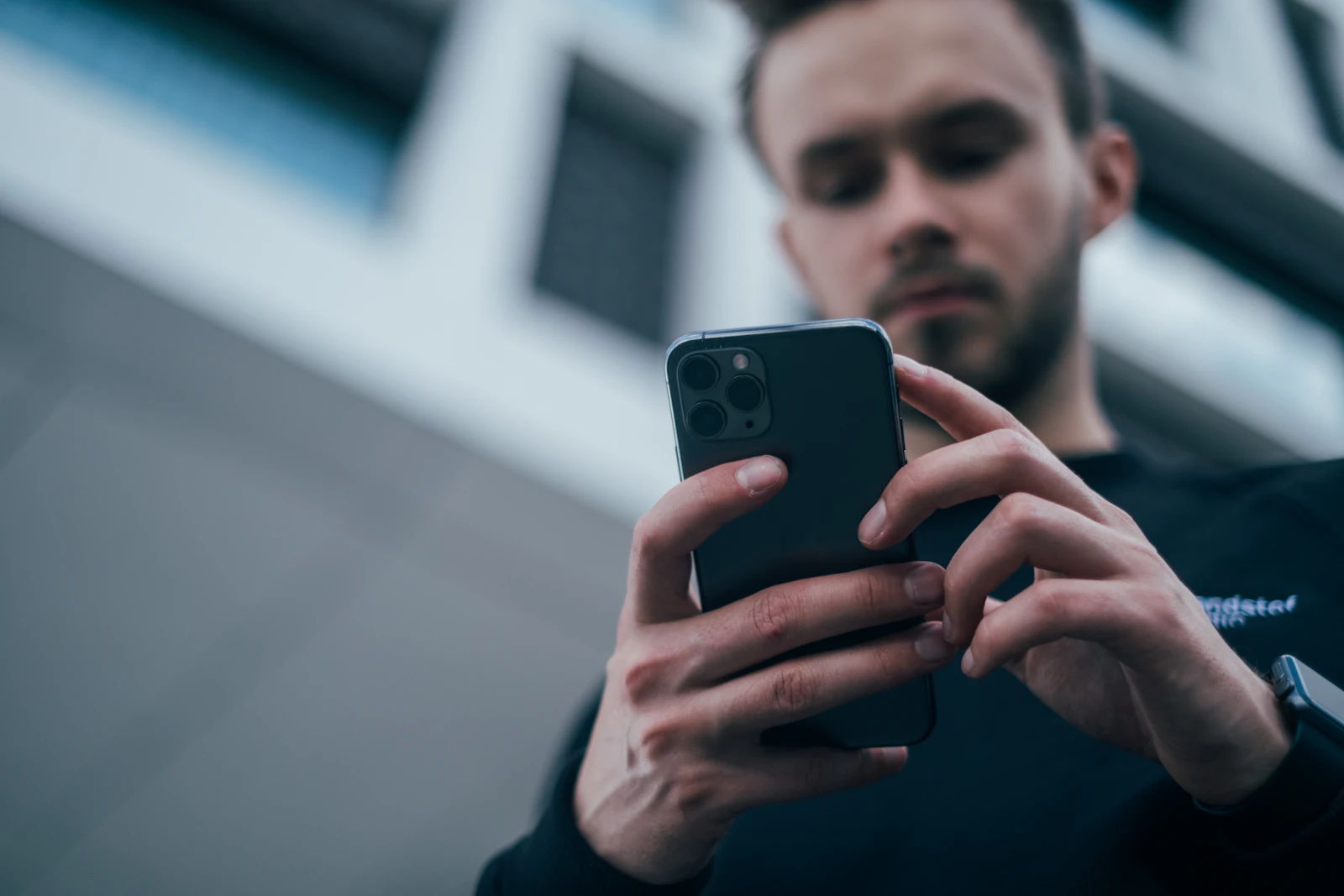
Namaste, friend. Your phone holds your photos, your chats, your bank, your dating apps and probably that embarrassing playlist. That makes your accounts very attractive to people who should never see them. Dev is here to make security simple, painless and even a little satisfying. The two heroes of this story: a password manager and two-step login.
Why Your Passwords Are the Weak Spot
Most account break-ins are not dramatic movie hacks. They happen because someone reused a password that leaked from a different website, or picked something easy to guess. If you use the same password on five sites and one of them is breached, all five are open. It’s not a bug, it’s a feature… of human laziness.
Meet the Password Manager
A password manager is an app that creates and remembers long, unique passwords for every account. You only need to remember one strong master password (or unlock it with your face or fingerprint). It then fills in your logins automatically on your phone and computer.
- Built-in options: the password tools that come with your phone, computer or browser are a great free starting point.
- Dedicated apps: standalone password managers work across every device and brand, and many have free tiers.
Whatever you choose, look for one that encrypts your data, syncs across your devices, and warns you about weak or reused passwords.
Choose a Master Password You Will Remember
Make it long rather than complicated. A passphrase of four or five random words strung together, like an odd little poem, is much harder to crack than a short word with a symbol on the end, and much easier to remember. Never reuse it anywhere else, and do not save it in your notes app.
Turn On Two-Step Login
Two-step login (also called two-factor or 2FA) asks for a second proof after your password. Even if someone steals your password, they still cannot get in. Your options, from good to best:
- Text message codes: better than nothing, but the weakest option.
- Authenticator apps: generate a fresh code every 30 seconds on your phone. Strong and free.
- Passkeys and security keys: log in with your face, fingerprint or a small physical key. Very hard to phish.
Find the setting under “Security” or “Login” in each account and switch it on.
Where to Start: The Priority List
Do not try to fix everything in one evening. Start with the accounts that unlock everything else:
- Your main email (it can reset all your other passwords).
- Your phone’s cloud account.
- Banking and payment apps.
- Social media and messaging.
- Dating apps and shopping sites.
Then tackle a few more accounts each time you log in to them. The password manager will help you track progress.
Save Your Recovery Codes
When you turn on two-step login, many services give you backup codes. Store them safely, inside your password manager or printed and kept somewhere private. If you lose your phone, those codes are your way back in.
Little Habits That Keep You Safe
- Never share login codes with anyone, even if a message claims to be from support.
- Check the web address before typing your password; scam pages love to look like the real thing.
- Keep your phone and apps updated, since updates fix security holes.
- Lock your phone with a code and biometrics, not just a swipe.
Fifteen minutes of setup today means a lot more peace tomorrow. Your secrets stay yours, as the universe intended. Namaste.
Comments
Be the first to leave some love.

 The Captain Look




Leave a comment