

















Love Your Lock Screen: Make It Pretty, Useful and Private
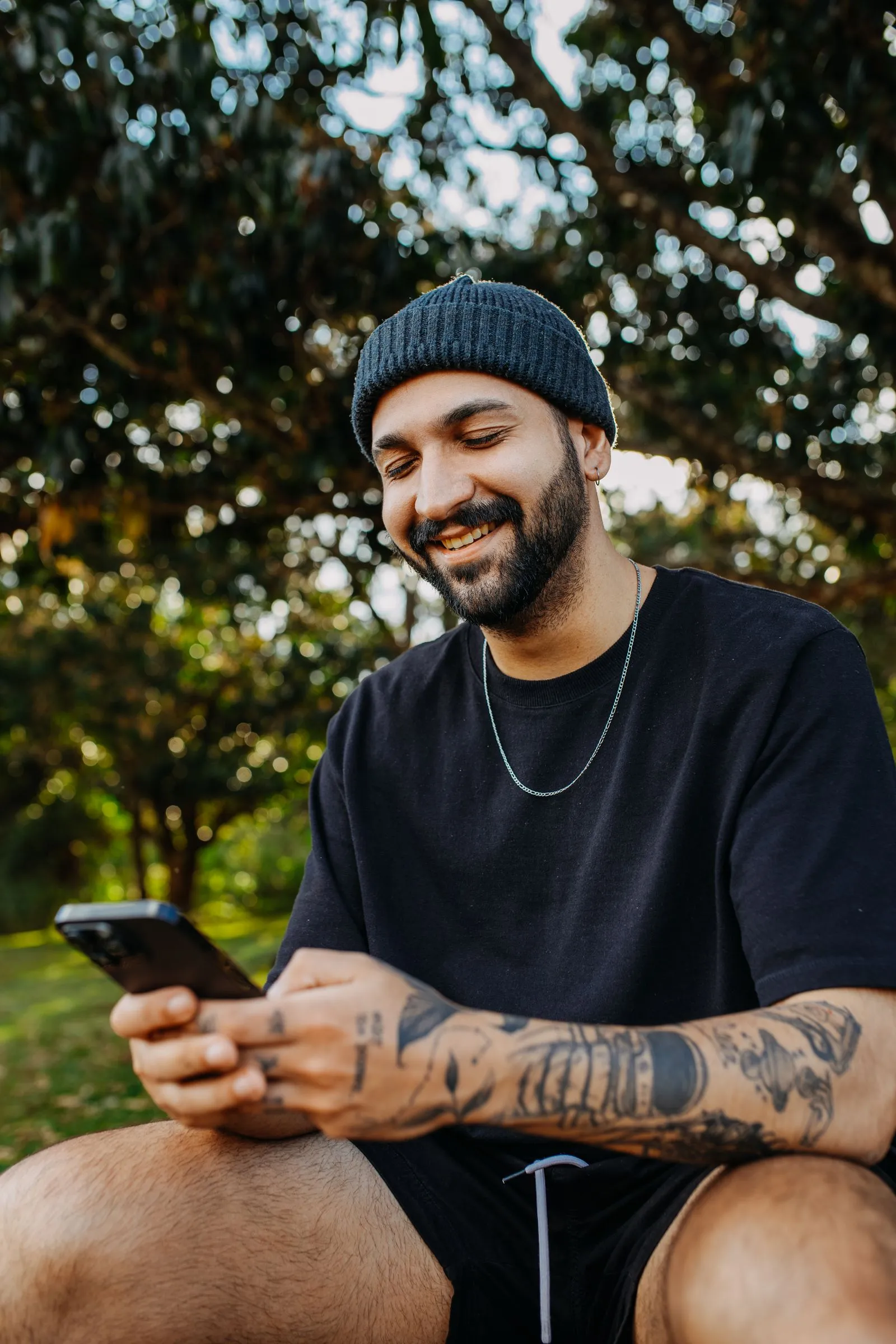
Namaste, gorgeous. You look at your lock screen dozens of times a day, more often than you look in the mirror (no judgement). So why not make it something that brings you joy, saves you time and keeps your private business private? A few minutes in the settings and your phone will greet you like an old friend. Let us set it up.
Pick a Wallpaper That Makes You Smile
Your lock screen wallpaper is a tiny daily mood booster:
- Use your own photos. A beach you loved, your best friends laughing, your dog in a party hat. Personal beats stock every time.
- Choose a calm image with some empty space, so the clock and notifications stay easy to read.
- Try a rotating set. Many phones can shuffle through a folder or album of photos, so your lock screen changes through the day.
- Consider a separate home screen wallpaper. A busy photo on the lock screen and a plain, soft background behind your apps keeps icons readable.
On most phones you can change it by long-pressing the lock screen or going to the wallpaper section in settings.
Add Useful Widgets and Shortcuts
Many phones now let you place small widgets on the lock screen. Pick only what you genuinely glance at:
- Weather for a quick look before you head out
- Calendar so your next plan is always in sight
- Battery levels for your earbuds and watch
- Fitness rings or steps if they motivate you
- Camera and torch shortcuts are often there already. Keep them, they save you on dark staircases and spontaneous photo moments.
Less is more: three or four widgets look clean, ten look like an airport departures board.
Keep Your Notifications Discreet
Here is the bit people forget. Your lock screen can be seen by anyone near your phone: on the bus, on a café table, in a friend’s hand. Protect your privacy:
- Hide message previews when locked. Look in the notifications settings for an option to show previews only when the phone is unlocked. You will still see who messaged, but not what they said.
- Choose app by app. Dating apps, banking apps and private chats can be set to show no preview or no lock screen notification at all.
- Check what Siri, Google Assistant or other voice helpers can do while locked, and limit anything personal.
- Turn off lock screen access to controls you do not need, such as certain settings shortcuts, so a stranger cannot switch on flight mode on a lost phone.
Make It Helpful in an Emergency
Your lock screen can also help you if something goes wrong:
- Set up your emergency or medical information so first responders can see allergies and emergency contacts without unlocking the phone.
- Add a “lost phone” message with a trusted contact number, if your phone allows a lock screen message. Never put your home address there.
Lock It Properly
A pretty lock screen is only useful if it actually locks:
- Use a strong passcode, ideally six digits or more, or a short alphanumeric code.
- Turn on face or fingerprint unlock for convenience.
- Set auto-lock to a short time, such as one or two minutes.
Use Focus or Mode Profiles
If your phone supports focus or mode profiles, you can pair different lock screens with different parts of your day: a calm one for sleep with no notifications, a work one with your calendar, a weekend one with your favourite holiday photo. Switching modes changes the whole mood instantly.
Ten minutes, one cup of tea, and your phone becomes a little more you and a lot more private. And if a widget misbehaves? It is not a bug, it is a feature. Namaste.
Comments
Also give your opinion.

 The Captain Look




Leave a comment