

















Make Your TV Look Amazing: Picture and Sound Settings That Matter
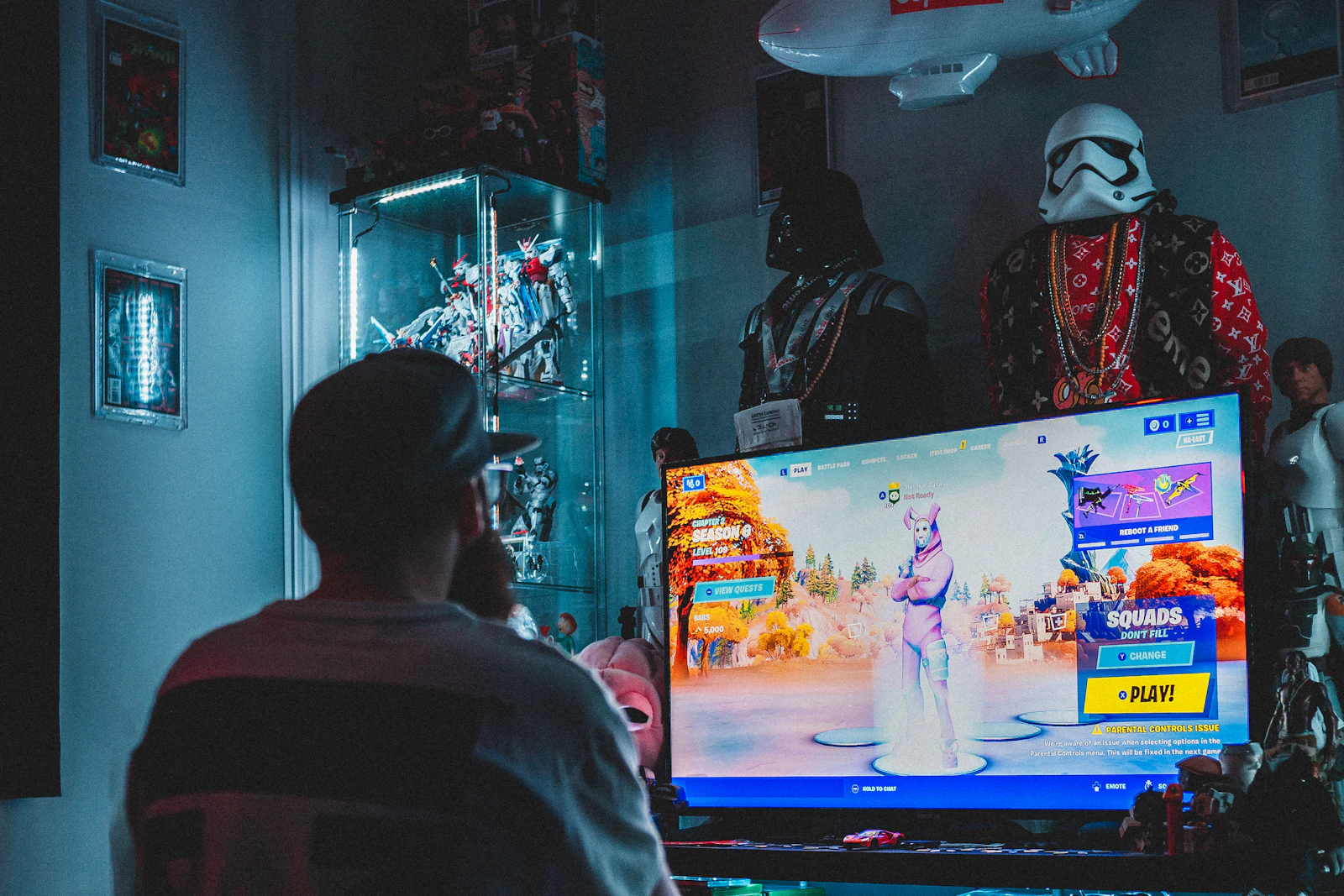
Namaste, friend. Most TVs leave the factory set up to look bright and flashy in a shop, not beautiful in your living room. A few minutes in the settings menu can make your shows look the way the filmmakers intended. No special gear required. It’s not a bug, it’s a feature.
Pick the Right Picture Mode
Your TV probably has modes like Standard, Vivid, Sport, Cinema, Movie or Filmmaker. For films and series, choose Movie, Cinema or Filmmaker Mode if available. They show more natural colours and skin tones. Vivid looks punchy in a shop but often makes faces look orange and whites look blue.
Turn Off Motion Smoothing
Ever noticed that films look strangely like a cheap soap opera? That is motion smoothing, also called motion interpolation. Find the setting, often under names like motion, clarity or smoothness, and switch it off or set it low for films. You may like a little of it for live sport.
Adjust Brightness for Your Room
In a bright room during the day, you may need a brighter picture. In the evening with the lights low, turn down the backlight or brightness for a more comfortable, cinematic look. Some TVs have a light sensor that adjusts automatically. Try it and see if you like it.
Choose Warm Colour Temperature
Look for colour temperature or white balance and choose Warm. It may look slightly yellow at first, but your eyes adjust quickly, and colours become more accurate and pleasant.
Sharpness Is Not Always Your Friend
High sharpness adds artificial outlines around objects. Set it low or to zero for most content. A good picture looks clear without that crunchy edge.
Fix the Sound
TV speakers are often thin and quiet for dialogue.
- Try a dialogue enhancement or clear voice setting.
- Turn off virtual surround if voices sound echoey.
- A soundbar is the simplest upgrade for fuller sound and clearer speech.
- Place the soundbar right below the screen so voices seem to come from the actors.
Use the Best Connection
Connect your streaming device, games console or soundbar to the HDMI ports that support the highest features, often labelled on the back of the TV. Use a decent HDMI cable, especially for gaming or high-resolution content.
Keep It Updated and Private
Install software updates to keep apps working and the picture improving. Check the privacy settings and turn off viewing data sharing or personalised advertising if you prefer not to share.
Position Matters
Sit straight in front of the screen at eye level if possible. Mount or place the TV so the centre is roughly at your eye height when seated. Avoid placing it opposite a bright window that causes glare.
A few clicks and your living room turns into a cinema. Namaste, and enjoy your next binge.
Comments
Be the first to leave some love.

 The Captain Look






Leave a comment